Carrying out survey
This screen allows users to manage executions.
An execution is a set of configurations that defines a survey, including the start date, end date, fixed questions, additional questions, SKU scope, and audit filters.
Screen access
To access the " Carrying out survey" screen:
- Access the "Survey Configuration" option on the side menu.
- Select the " Carrying out survey" option.
Register a new execution
To register a new execution:
- Select the “+ New Survey Executed” option in the top-left corner of the page.
- Fill in the following information:
- Description: name of the execution.
- Wave: select the wave associated with this execution.
- Standards: select the survey model (coverages) for this execution.
- Start date: start date of the execution.
- End date: end date of the execution.
- Daily target: daily survey target per surveyor.
- Maximum survey time in minutes: maximum expected time to complete a survey in a customer.
- Survey minimum time in minutes: minimum expected time to complete a survey in a customer.
- Minimum time between surveys in minutes: minimum time between the end of one survey and the start of the next survey.
IMPORTANT
The maximum survey time, minimum survey time, and minimum time between surveys do not restrict the surveyor's ability to complete surveys. These values are used only by the audit filters to identify potential inconsistencies.
- SKU Scope: select the SKU scope for this execution.
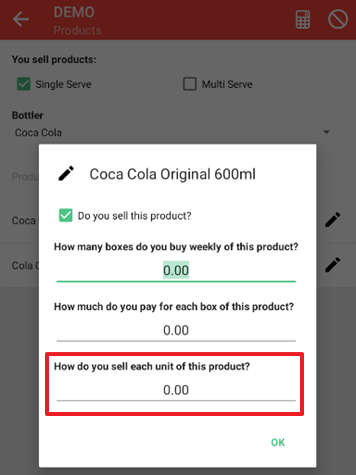
- Colected retail price: select this option to collect the retail price of each product for each customer.
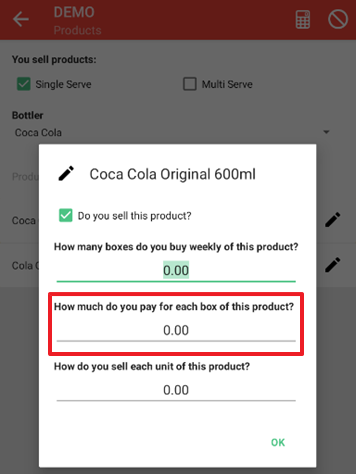
- Colected wholesales price: select this option to collect the wholesale price of each product for each customer.
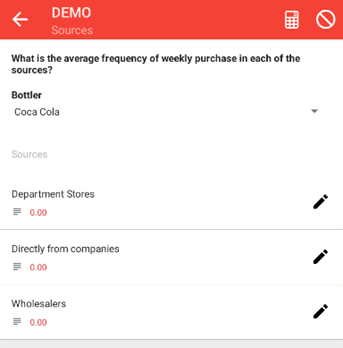
- Colected sales source: select this option to collect information about the sales source used by the customer.
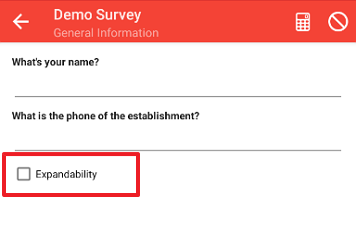
- Catch expansion capacity: select this option to collect information about the customer's expansion capacity.
- Catch deadline: select this option to collect payment deadline information for each bottler included in the execution.
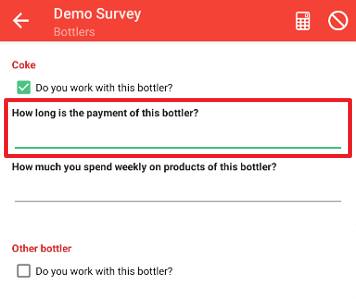
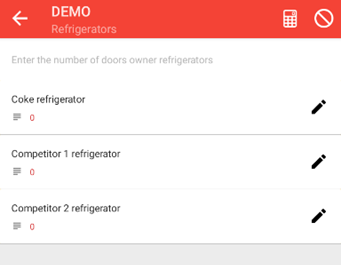
- Catch fridge's doors quantity: select this option to collect the number of refrigerator doors at the customer location.
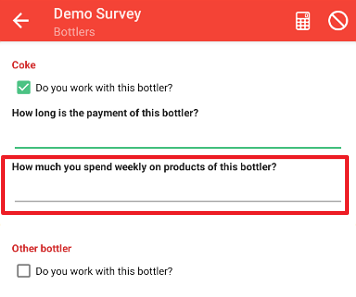
- Catch average weekly revenue: select this option to collect the average weekly revenue for each bottler.
- Survey Extra Question: select the extra questions to be included in this execution.
- Register Extra Question: select the extra questions to be included when registering new customers in this execution.
- Filters: select the inconsistency filters to be applied during the audit process for this execution.
- Select the “Confirm” option.
IMPORTANT
The system runs a process once per day, at midnight, to check for executions that are scheduled to start. Because of this process, the start date of an execution must be at least one day after the current date (D+1).
Edit an execution
To edit an existing execution:
- Select the “Pencil” icon (✎) on the right side of the item.
- Make the necessary changes on the editing page.
- Select the “Confirm” option.
Cancel an execution
To cancel an existing execution:
- Select the “Cancel” icon (⊘) on the right side of the execution.
- The system will update the execution status to “Cancelled”.
IMPORTANT
Only executions with the “Planned” status can be canceled. Once an execution has started, it can no longer be canceled.